
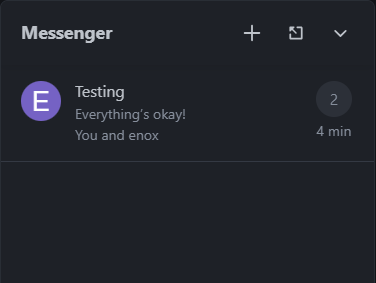
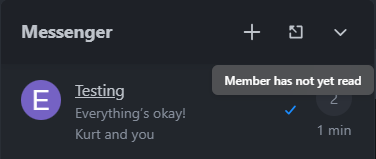
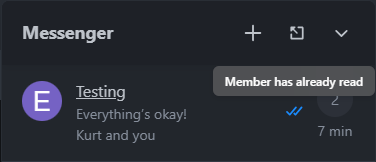
Live Messenger — private messages in a floating window for Invision Community 5.
Read and reply to private messages directly on the page, without needing to navigate to the "Messages" section.
Live Messenger adds a compact chat interface to every page of the forum. Users can view new messages, open a conversation, send a reply, and close the window—all while remaining in the thread they were reading. For the forum, this means increased activity and fewer missed or unaddressed messages.
Possibilities:
Floating chat available on all pages. The panel is anchored to the bottom of the screen, keeping it always within reach.
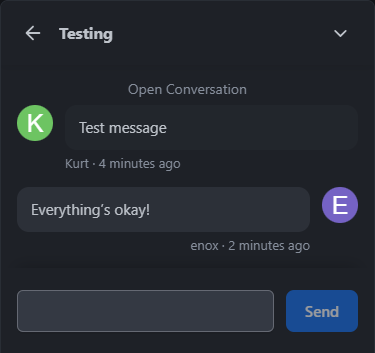
Conversations in a single window: view your list of chats, read messages, send quick replies, and return to the list—all in one place.
Quick replies without page reloads. Messages appear instantly within the conversation and are also synced to the standard "Messages" section.
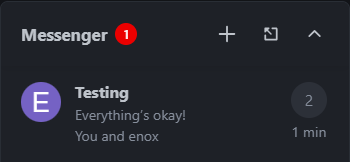
New messages at your fingertips. An unread count is displayed in the header, and a list of new messages appears when the panel is expanded.
Auto-update. The application checks for new messages every 12 seconds without requiring a page refresh. Requests are paused if the tab is in the background or a conversation window is currently open.
Read status is saved on the server, ensuring messages don’t reappear as "unread" after a page refresh.
Header buttons: start a new conversation or navigate to the full messaging interface.
Guest mode. Visitors see a prompt to log in, featuring "Sign In" and "Sign Up" buttons—encouraging registration.
Two display styles: a "Panel" anchored at the bottom of the screen, or a "Bubble"—a circular button with an unread counter.
Mobile-optimized. Tapping the chat opens the conversation directly without redirecting you to another page. The panel sits below the site’s bottom menu, ensuring it doesn’t obstruct navigation.
Theme-aware. Colors, corner radii, and dark mode settings are inherited from your chosen IC5 theme; the unread counter matches the color of the platform’s standard notification badge.
Native interface. Uses the standard input fields, buttons, and toggles found in the IC5 design system.
Administrator Control Panel (ACP)
Display:
Enable by default on desktop computers.
Enable by default on mobile devices.
Show to guests (a panel containing login and registration buttons).
Style: panel or bubble.
Bottom offset for the panel on mobile devices (in pixels).
Access:
Selection of user groups that have access to the messenger, or "all".
Participant Settings.
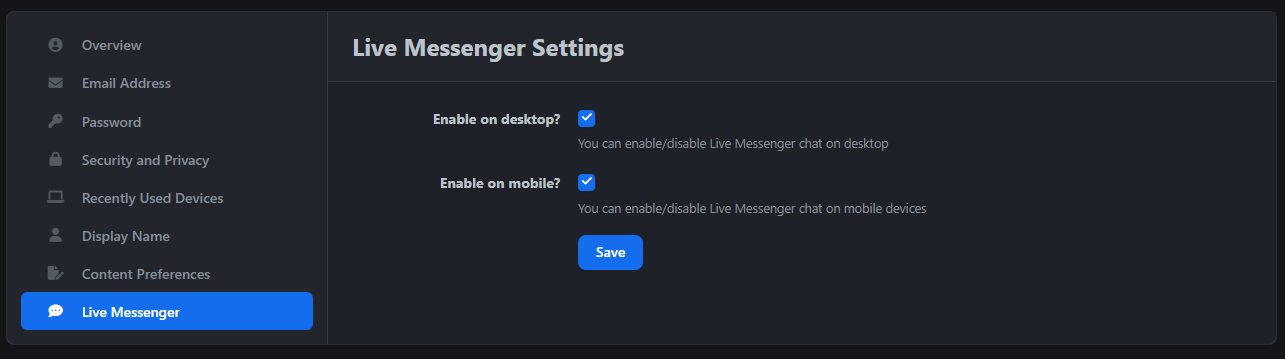
In the account settings there is a “Live Messenger” tab with standard IC5 switches. Each participant decides whether to show the chat on the computer and on the phone. Administrator settings set default values.
Requirements and installation:
Invision Community 5.0.x, PHP 8.1 or higher.
Installation via the ACP: System → Applications → Install. There is no need to manually edit templates or files; everything is integrated using standard IC5 extensions.
It uses the built-in Invision Community private messaging system, so conversation history is not duplicated. A separate table stores only the display settings for individual members.
You may only provide a review once you have downloaded the file.
There are no reviews to display.